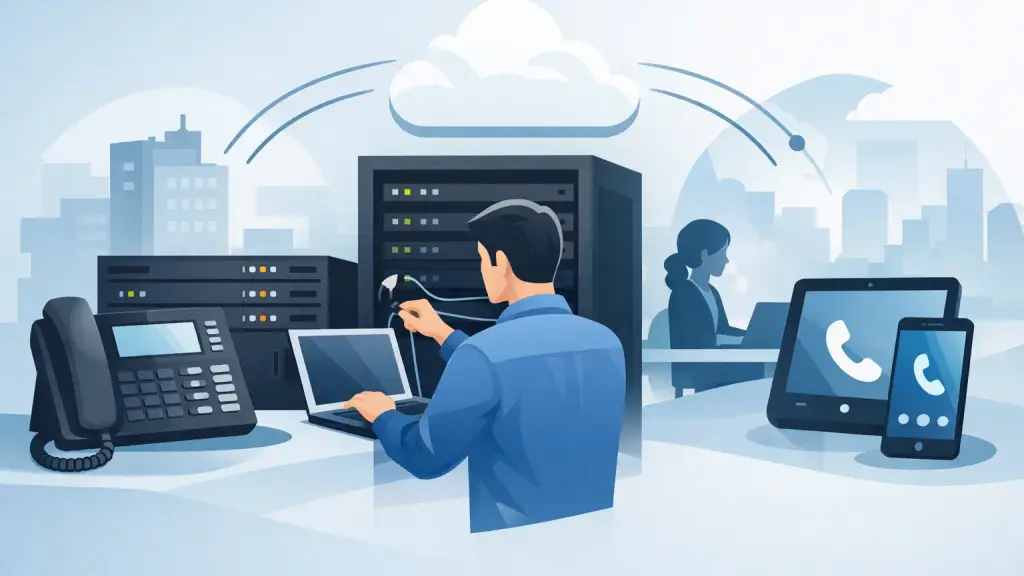
A Panasonic PBX can run reliably for years, but one programming change, failed extension, or routing issue can still require immediate attention. A properly planned Panasonic remote access setup gives authorized technicians a controlled way to diagnose and program the system without waiting for an on-site visit. Done poorly, however, it can expose a critical business phone system to unnecessary risk or simply fail when it is needed most.
Remote access is not a generic plug-and-play setting. The correct method depends on the Panasonic platform, installed software, network design, firewall policies, and who needs administrative access. For Chicago-area businesses with older PBX equipment, the first objective is continuity: maintain a secure, documented access path that supports faster service without disrupting calls.
What Remote Access Means on a Panasonic PBX
Remote access usually means allowing an authorized administrator or service technician to connect to the PBX programming interface from outside the office. That connection may support system programming, extension changes, voicemail troubleshooting, call-routing adjustments, diagnostics, and review of system status.
The exact process differs by system generation. Some Panasonic business systems use maintenance software connected through an Ethernet interface. Others may have more limited remote management options, legacy modem-based access, or site-specific programming requirements. The presence of a network port does not automatically mean the PBX should be exposed to the public internet.
For most businesses, the safest approach is to place remote programming behind a properly configured virtual private network, or VPN. The technician connects to the organization’s protected network first, then reaches the PBX through its internal IP address. This avoids publishing the phone system’s management services directly to the internet.
Start With the System and Network Inventory
Before making a change, identify what is installed. This step saves time and prevents a common mistake: applying instructions intended for a different Panasonic model or software version.
Document the PBX model, software version, cabinet configuration, installed cards, system IP address, default gateway, subnet mask, and the computer used for programming. Record whether the system also connects to voicemail, SIP services, a paging system, door phones, call accounting, or other business equipment. A remote programming change can affect more than desk phones.
The network inventory should also identify the firewall, VPN method, managed switch ports, static IP assignments, and any network segmentation between voice and data. If the PBX is using an address assigned automatically by DHCP, consider reserving that address or assigning a properly documented static address. Remote access cannot remain dependable if the PBX address changes after a reboot or network maintenance event.
Confirm the Local Programming Connection First
Remote access should never be the first test. A qualified technician should confirm that the programming application can communicate with the Panasonic system from inside the office network. If local access fails, opening a VPN or changing firewall settings will not solve the underlying problem.
Verify the correct programming software, compatible version, connection settings, administrator credentials, and network reachability. Back up the PBX configuration before making programming changes. A current backup is a practical safeguard when changes involve call routing, trunk settings, extension programming, or voicemail integration.
Build a Secure Panasonic Remote Access Setup
A secure design limits both exposure and privileges. The goal is not to make the PBX reachable from anywhere. The goal is to make it reachable only by approved people, through a controlled path, when support is required.
Use a business-grade VPN with individual user accounts rather than a shared password. Multi-factor authentication adds another layer of protection, especially for administrators and outside support providers. Once connected, access should be limited to the PBX management address and any related systems required for the service task.
Avoid direct port forwarding to a Panasonic PBX whenever possible. Forwarding management ports through a firewall can create an internet-facing target that may be discovered, scanned, or attacked. It also creates a maintenance burden: someone must track every rule, validate it after firewall changes, and remove it when it is no longer necessary.
If direct access is unavoidable because of a legacy requirement, use the narrowest possible rule set. Limit access by approved source IP addresses, use strong credentials, restrict access hours where practical, and document the business reason. This should be treated as an exception, not the standard design.
Protect Credentials and Administrative Roles
Default passwords, shared technician logins, and credentials stored in unprotected spreadsheets are frequent weak points in legacy phone environments. Change default administrative credentials, use unique strong passwords, and keep them in an approved password-management process.
Not everyone who administers phones needs full system access. Office staff may need permission to manage basic user settings or directory information, while system-level programming should remain limited to designated internal administrators and qualified PBX technicians. Separating these responsibilities reduces the chance of an accidental system-wide change.
Keep a record of who has access, what type of access they have, and when it should be reviewed. This is especially useful after staff changes, IT provider changes, or an office relocation.
Test Access Without Interrupting Operations
A remote connection that works during installation but fails during an after-hours emergency is not a solution. Test the complete process from an external network after the setup is complete. Confirm that the approved user can authenticate to the VPN, reach the PBX, open the programming interface, and complete a limited read-only or low-impact verification.
Schedule testing outside the busiest call periods. Do not make broad changes to trunks, incoming call destinations, or extension assignments while the business is handling high call volume unless there is an urgent operational reason. For critical changes, establish a rollback plan before touching the programming.
The test should also verify call quality and key calling functions after any configuration work. Place inbound and outbound test calls, confirm major departments or hunt groups receive calls properly, and check voicemail or auto-attendant operation if applicable. Remote connectivity is only one part of the system’s reliability.
Common Problems That Affect Remote Support
The most common failure is not the PBX itself. It is an undocumented network change. A new firewall, replacement internet service, modified VLAN, changed subnet, or relocated network rack can break a previously functional remote access path.
Another issue is using a programming computer that has been replaced or updated without preserving the necessary software and configuration files. Older Panasonic platforms may require specific maintenance software versions and compatible operating environments. Trying to force a legacy application onto a new computer without testing can create delays during a service event.
Remote access may also be limited by system age. Some legacy Panasonic systems remain highly serviceable but have constraints that should be evaluated honestly. If the hardware is stable and meets operational needs, maintaining it with documented remote support can be the right decision. If replacement parts, carrier compatibility, security requirements, or multi-location needs are becoming persistent issues, a planned move to hosted VoIP may be more practical than repeated emergency work.
Keep Documentation Where Support Can Find It
Every Panasonic remote access setup should have a concise support record. It should include the PBX model, programming method, network address, VPN process, primary contacts, backup contacts, software location, backup location, and notes on any special call routing or integrations.
Store this information securely and make sure it is available to the people responsible for telecom continuity. The document should not expose passwords in plain text, but it should tell an authorized technician where credentials are managed and who can approve access.
For organizations with multiple offices, standardizing this documentation is particularly valuable. Each site may have different hardware and carrier arrangements, but the support process should be consistent enough that a technician can quickly identify the system, connect through the approved method, and begin diagnosis.
When Professional PBX Support Is the Better Choice
A remote access configuration touches business communications, network security, and often older equipment with limited room for error. It makes sense to involve a Panasonic-qualified service provider when the system has unknown programming history, no current backup, unreliable network connectivity, complex call flows, or recurring failures.
iTeleco provides hands-on Panasonic PBX repair, programming, maintenance, and emergency support for businesses in Chicago and surrounding suburbs. A technician can assess whether remote access is appropriate for the installed system, correct the network and programming issues that prevent reliable service, and help establish a documented support plan.
The best remote access arrangement is the one nobody thinks about during a busy workday because it is secure, tested, and ready when a phone issue cannot wait.