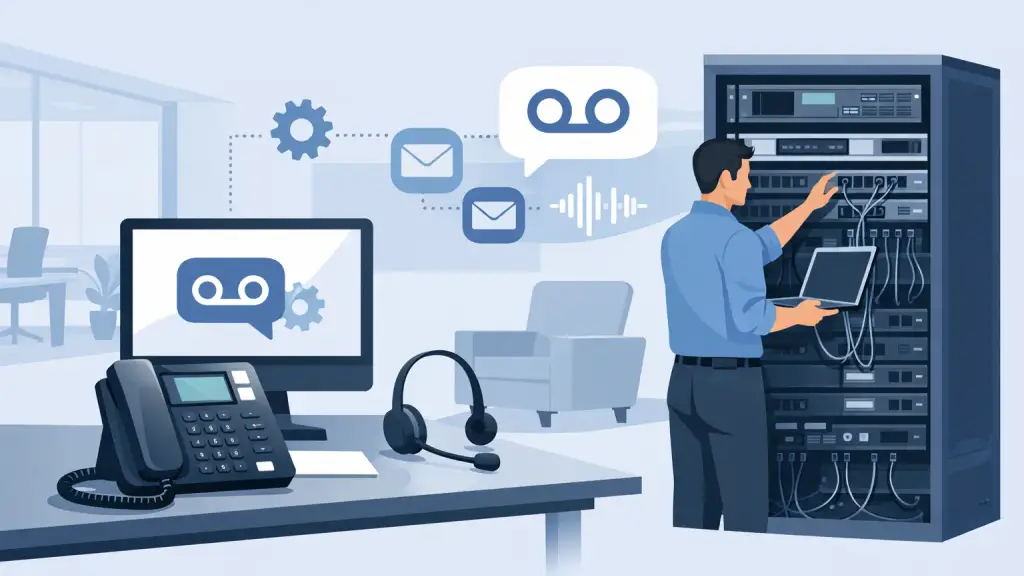
A caller reaches your main number after hours, hears the wrong greeting, and cannot leave a message for the department they need. That is not a minor inconvenience for a business. It can mean missed appointments, delayed service, and lost sales. To configure Panasonic voicemail correctly, start by separating a user mailbox issue from a system programming issue. The fix depends on which Panasonic PBX and voicemail platform your office uses.
Many businesses still rely on Panasonic systems because they are dependable when maintained properly. However, configurations can be years old, documentation may be missing, and employee changes often leave behind inactive mailboxes, incorrect extensions, or greetings that no longer reflect the business. A careful review prevents a small change from disrupting call coverage across the office.
Start With the Panasonic System You Have
Panasonic voicemail is not configured the same way on every system. Your office may have a Panasonic KX-TDA, KX-TDE, KX-TAW, KX-NS, or another legacy PBX connected to a separate voicemail unit. Common voicemail platforms include Panasonic TVS and TVA systems, while some newer configurations use integrated messaging features.
Before making changes, identify the PBX model, voicemail model, and the extension number assigned to the mailbox. The equipment labels are usually found on the cabinet, but do not guess based only on the phone set on a desk. A digital or IP telephone can be connected to several different PBX platforms.
It also helps to determine what needs to change. A staff member may only need to reset a password or record a new personal greeting. By contrast, changing where unanswered calls go, setting up an auto attendant, or creating a new department mailbox may require administrator access and PBX programming.
Configure Panasonic Voicemail for Individual Users
For most employees, voicemail changes begin from their assigned Panasonic desk phone. The exact soft keys and menu prompts vary, but the general process is consistent: access the voicemail system, enter the mailbox credentials, and use the voice prompts to manage greetings, messages, and notifications.
First, confirm that the employee is dialing the correct voicemail access extension. In many offices, there is a dedicated voicemail button on the phone. In others, users dial an internal extension or press an intercom key before entering the access number. If the mailbox does not answer or reaches another employee's mailbox, stop there. The issue may be extension mapping rather than a password problem.
Once inside the mailbox, record the personal greeting in a quiet area and speak at a normal pace. A useful business greeting identifies the employee, states whether they are unavailable, and provides a practical expectation for a return call. Avoid lengthy greetings that force callers to wait through unnecessary information.
For example, a clear greeting can say: “You have reached Jordan in service. I am assisting another customer or away from my desk. Please leave your name, number, and a brief message, and I will return your call as soon as possible.”
Employees should also verify their recorded name. Panasonic voicemail systems often use the recorded name for directory dialing and message forwarding. If it is missing or outdated, callers using the company directory may have trouble finding the right person.
Password controls matter as well. Default or shared mailbox passwords create avoidable risk, especially for offices that receive customer, scheduling, or account-related messages. Each active mailbox should have an individual password, and former employee mailboxes should be disabled, reassigned, or reviewed according to the company's retention process.
Set Up Call Coverage and Routing Correctly
The most important voicemail setting is not the greeting. It is the call path that determines when a caller reaches voicemail in the first place. A Panasonic phone can ring at an employee's desk, forward to another extension, route to a hunt group, or transfer to voicemail after a programmed number of rings. Those rules must match how your office actually handles calls.
Match Ring Time to the Department's Workflow
A short ring time can send callers to voicemail before staff have a fair chance to answer. A long ring time can frustrate callers and tie up incoming lines. There is no single right setting. A busy medical, legal, service, or scheduling office may need a live-answer group before voicemail. A small professional office may prefer calls to go directly to an individual mailbox after a reasonable number of rings.
Review both daytime and after-hours routing. Businesses frequently update their daytime greeting but forget the night service schedule. As a result, callers may hear an old after-hours message, reach a mailbox that no one monitors, or be sent to an operator extension that is not staffed.
Use Department Mailboxes Where They Add Accountability
A shared department mailbox can be useful for functions such as service, billing, scheduling, or general inquiries. It should not become a place where messages disappear because several people assume someone else is responding.
Assign ownership. Decide who receives notifications, who checks messages during business hours, who covers absences, and how quickly a call is returned. If the voicemail platform allows message notification or forwarding, test it with the current email or paging destination. Older Panasonic voicemail integrations may need special attention after an internet, email, or phone system change.
Confirm Auto Attendant Options
If callers hear “Press 1 for sales” or “Press 2 for service,” those menu choices need to point to active extensions, groups, or mailboxes. Review every option from an outside phone, including timeout behavior when the caller does not press anything.
A well-configured auto attendant gives callers a direct route to the right team. A poorly configured one sends them in circles. Keep the menu concise, use the same department names employees use internally, and include an operator or general mailbox option when appropriate.
Test Panasonic Voicemail From Outside the Office
Programming is not complete until it has been tested as a caller would experience it. Test from a mobile phone or another external line rather than relying only on an internal extension. Internal calls can follow different routing rules and may not reveal a problem with inbound trunks, caller ID, or after-hours service.
Call the main number during business hours and after hours. Try each auto attendant option, let an employee extension ring without answering, leave a message, and confirm that the correct mailbox receives it. Then verify that the message waiting indicator appears on the intended phone and that any notification reaches the right person.
Also test common exceptions. Forward a call from an employee's phone, place that extension in do-not-disturb if your office uses it, and verify what happens when a mailbox is full. These situations are where old programming often becomes visible.
Common Problems When Panasonic Voicemail Will Not Work
When voicemail fails, the symptom can point toward the cause. If callers hear ringing and then a fast busy signal, the voicemail ports may be unavailable or the PBX may not be transferring calls correctly. If they hear the greeting but cannot leave a message, the mailbox could be full, disabled, or affected by message storage limits.
When a phone's message light stays on after all messages are deleted, there may be a synchronization issue between the voicemail unit and the phone system. If the wrong greeting plays, check whether the call is reaching the intended mailbox, a general delivery mailbox, or a separate after-hours call routing table.
Do not reset system programming as a first response. A broad reset can remove call-flow settings that were built around the way your business operates. It is better to document the current behavior, identify the affected extension or call path, and make the smallest controlled correction.
When to Bring in a Panasonic PBX Technician
A qualified technician is the right choice when you need to add or remove mailboxes, alter auto attendant menus, change call coverage across departments, repair voicemail port issues, or recover access to an administrator mailbox. It is also appropriate when the voicemail unit is aging, storage is unreliable, or the PBX has been relocated without updated programming.
For Chicago-area businesses with legacy Panasonic equipment, iTeleco provides hands-on PBX programming, repair, maintenance, and 24/7 emergency support. A technician can assess whether a targeted repair will restore dependable service or whether a phased move to hosted VoIP makes better operational sense. The best answer depends on the condition of the existing system, the number of locations, and how critical advanced call routing has become.
Keep a current record of mailbox extensions, department owners, after-hours schedules, and administrator credentials in a secure location. That one discipline makes future voicemail changes faster, protects continuity when staff changes occur, and gives your business a far better starting point when urgent support is needed.